Support
Manual
Step-by-step guides for organisers — from creating an event to collecting chips back after the race.
Searches chapter titles and the full content of every step.
Chapter 3 of 10 · swipe for the next one
Chapter 03
Online registration
Participants can register themselves through the event's public page, with nothing to install.
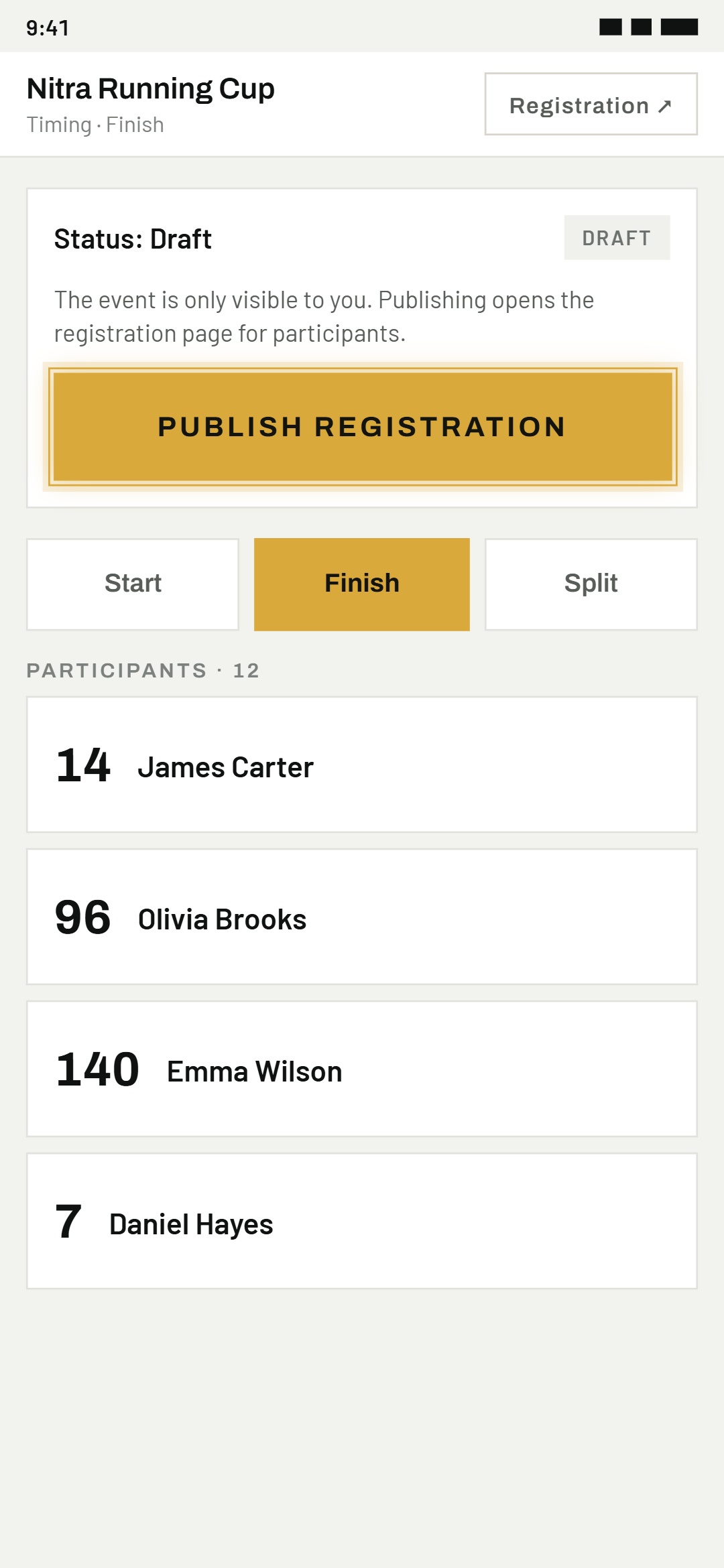
01Publish registration
On the timing screen, tap "Publish registration" — only then does the app make the event public. Find the link via the button in the top right (it changes to "Registration") — the same link later shows results too, its content just changes with the event's status.
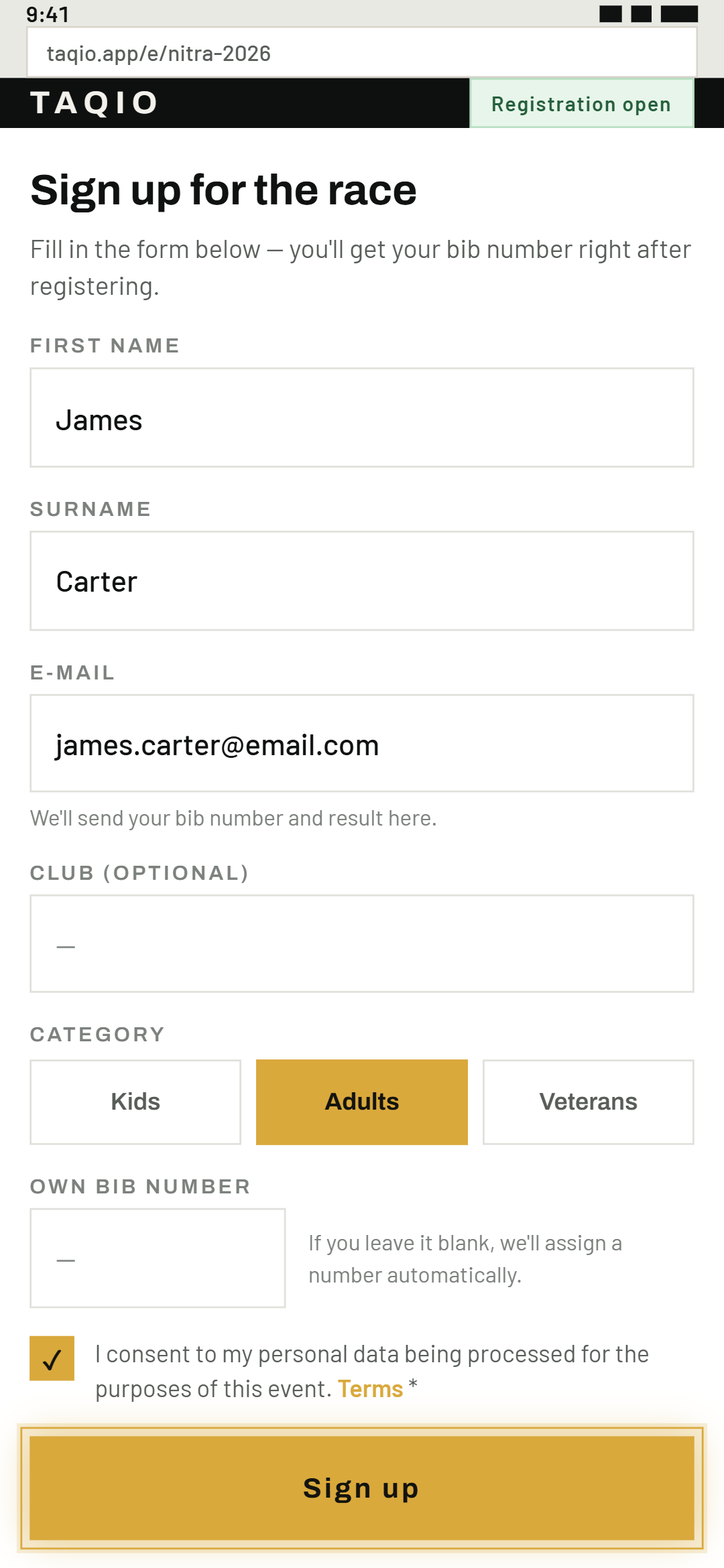
02The participant fills in their details
Name, category, optionally a club — right in the web browser, no app download needed.
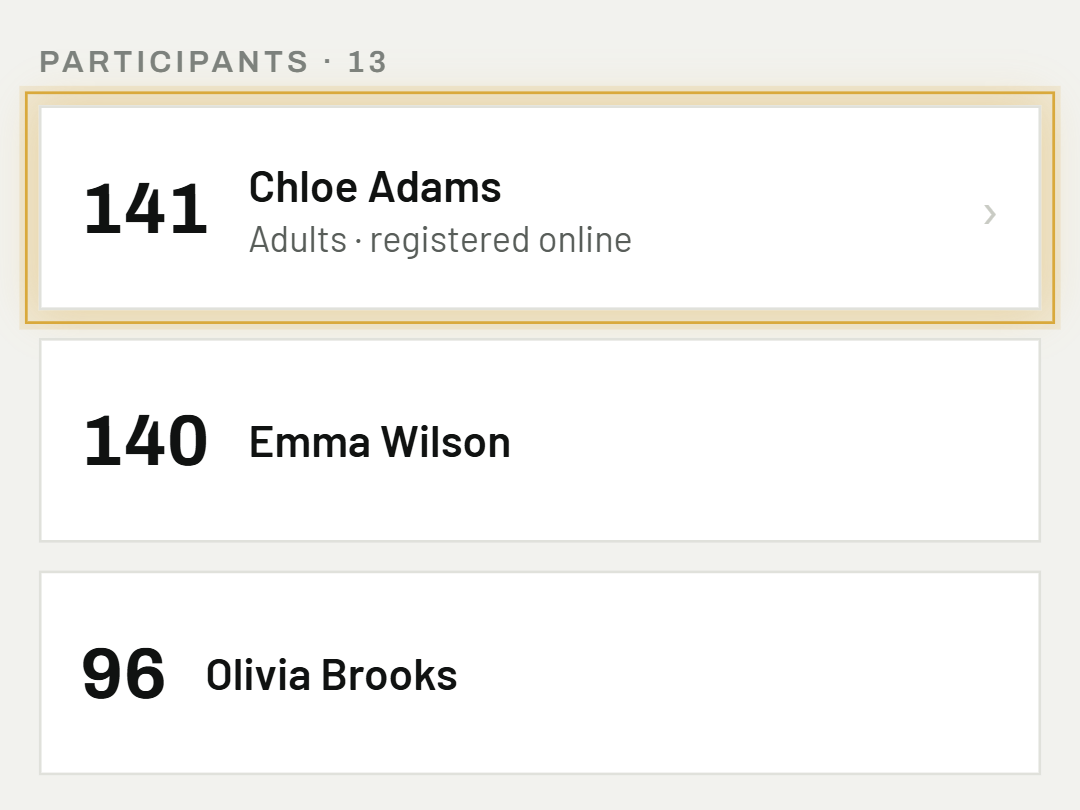
03A bib number is assigned automatically
A registered participant appears right away in the app's participant list — their bib number is assigned automatically unless they entered one manually. The app checks existing numbers as it assigns, so duplicates can't happen.
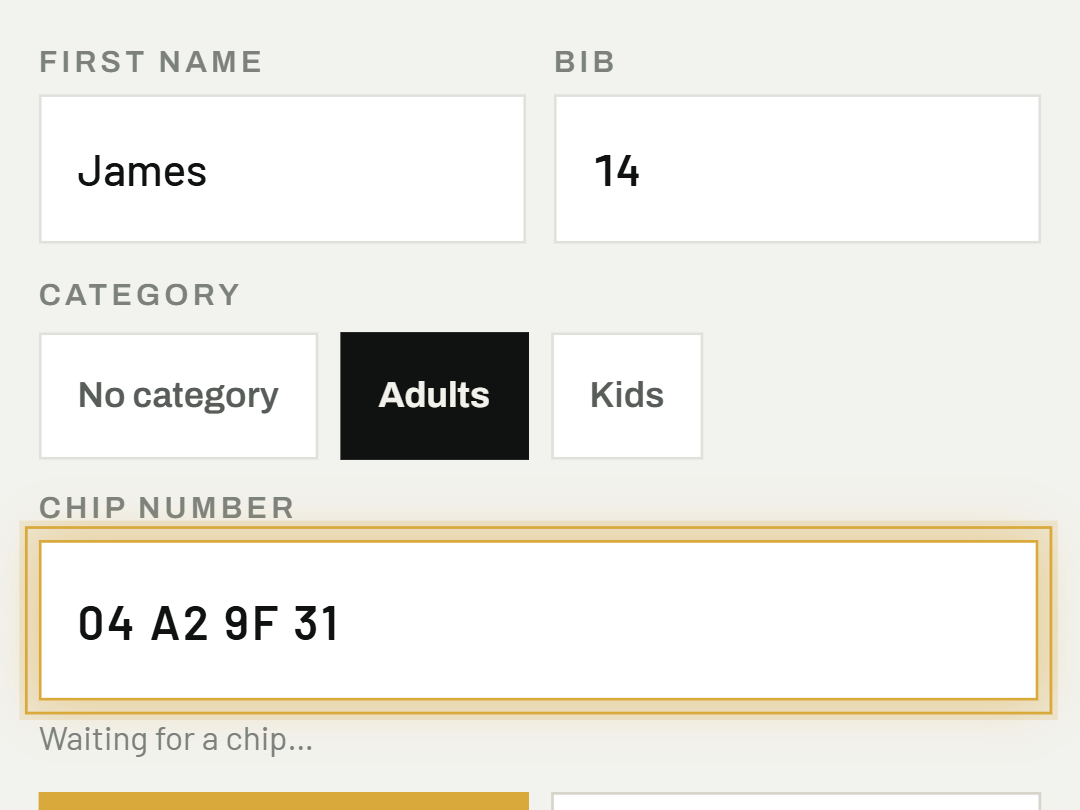
04Assign a chip or QR code
If you're timing with NFC, RFID or QR, pair the code with the participant when handing out their bib — easiest on race day itself. Tap into the Chip number field and hold an NFC chip against your phone, or an RFID chip against the RFID reader — the app reads the number and fills it in for you.
Was this helpful?
Need help? Write to us